I’ve been considering building an ESXi host for home to move my VMs off of Vmware workstation on my Windows 7 Desktop. I wanted something powerful but in a small form factor and uses a relatively low amount of electricity. Well… I think I’m almost there.
I’ll update this as I can with performance but so far I’m happy with the results. Right now I have 4 VMs running including PRTG, OpenVPN, and Zoneminder. So far I am pleased.
I have ESXi 5.5 running off of a flash drive.
Physical Components:
(from Amazon)
Shuttle – SH87R6 (You’ll have to inject the NIC driver for the Realtek hardware into the 5.5 image to use the onboard NIC. So far it seems to work great.)
Intel Core i7-4790S Processor (8M Cache, 3.2 GHz)
4x Seagate 500GB Laptop SATA 7200RPM 32MB Cache 2.5-Inch HDD (configured in RAID 10)
2x PNY XLR8 DDR3 16GB (2x8GB) 1600MHz (PC3-12800)(Four DIMMS total for 32GB)
LSI MegaRAID 256MB SAS RAID Controller MR SAS 8888ELP w/ LSIIBBU05(from eBay, pulled from some HP)
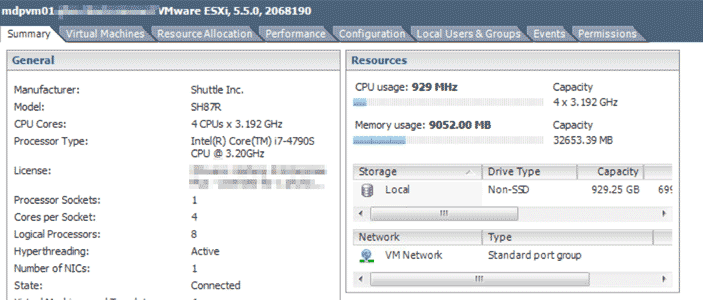
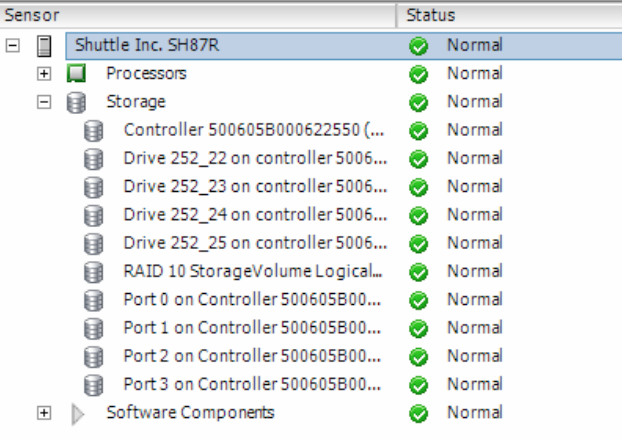
Hardware monitoring looks good

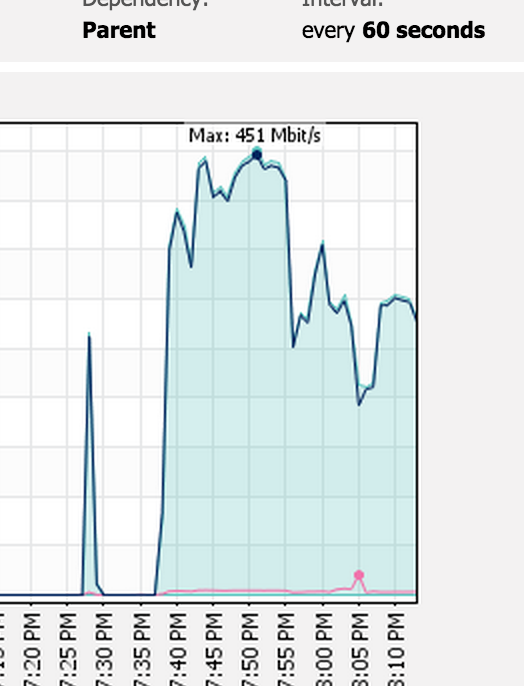
When backing up my VMs I had an interesting network graph that sort of looks like Michigan
Category Archives: Tech
Monitoring Ubiquiti APs with PRTG
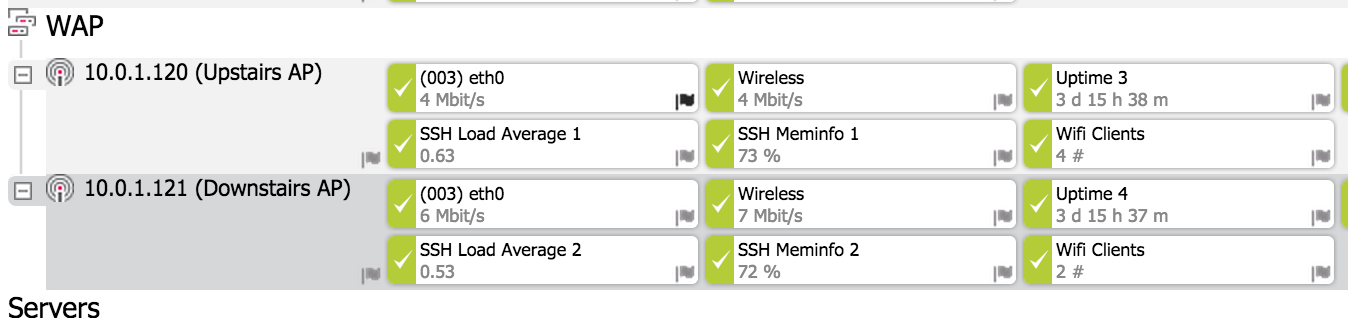
I have a couple of Ubiquity APs in my home and have an instance of PRTG running. I was looking for a good way to monitor the access points.

Out of the box Ubquiti supports SNMP and SSH. I wanted a way to monitor how many clients are connected. If you want to monitor the access points configure SNMP on the device, feed the string in to PRTG and the SSH credentials.
Then I wrote a simple shell script below that extracts information from the mca-dump table for connected clients. I’m sure there are different and probably more efficient ways to do this, but this works for me. Essentially the code greps the number and formats the return correctly for PRTG to read, including a status code.
1) Create the directory /var/prtg/scripts/
2) Using VI on the access point create the following file with the code below in /var/prtg/scripts/
3) Save it as wifiusers.sh
4) Add a custom SSH sensor for your access point.(I called mine Wifi Clients)
5) Set the primary channel to “Value (#)”
|
Windows DHCP Server Reporting wrong IP
I couldn’t find much documentation on this from other sources, so hopefully this will help someone else. If you ever need to re-ip a windows DHCP server and they are reporting the wrong address in the DHCP manager do the following (from an elevated/administrative command prompt.) At no point did the DHCP server seem to stop serving IPs, it looks like it was really just displaying the wrong IP.
netsh dhcp delete server <FQDN> <Old IP Address> netsh dhcp add server <FQDN> <New IP Address>
Broke Windows Update Error
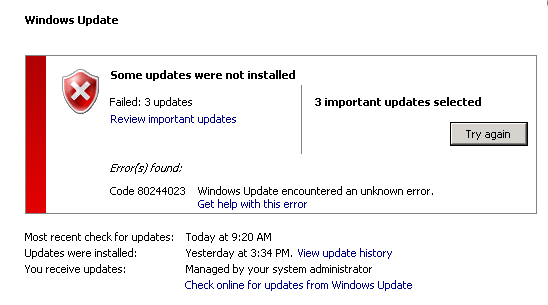
Windows update error 80244023

A few things going on here… this box is both a squid proxy server and WSUS server. It was having trouble updating itself. I couldn’t find much from googling, so hopefully this will help someone else.
This is at least for Server 2008 R2, but should work with Windows 7. I had a strange issue with windows update, I think updates partially downloaded and just needed to be cleared. However I also had both a proxy pac file specified and a proxy hard coded into IE. I removed them both then ran through the following.
(again, ensure there are no connection issues between your WSUS server and client by removing the proxy if needed)
Stop the Windows Update Service.
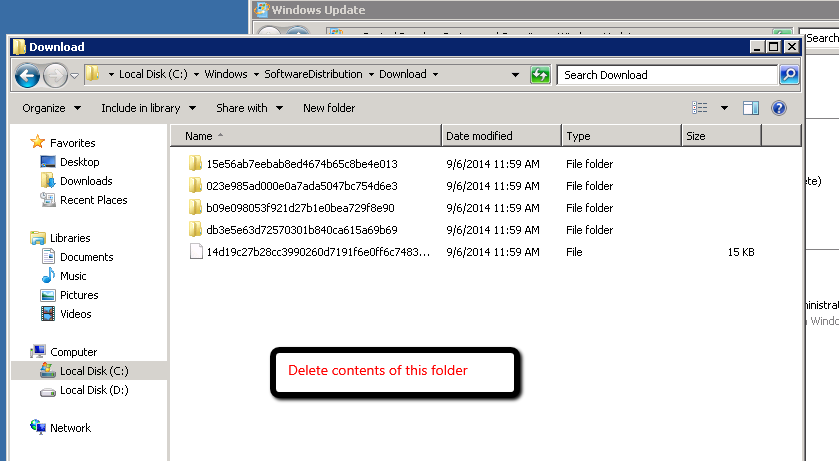
Remove contents of C:\Windows\SoftwareDistribution\Download\
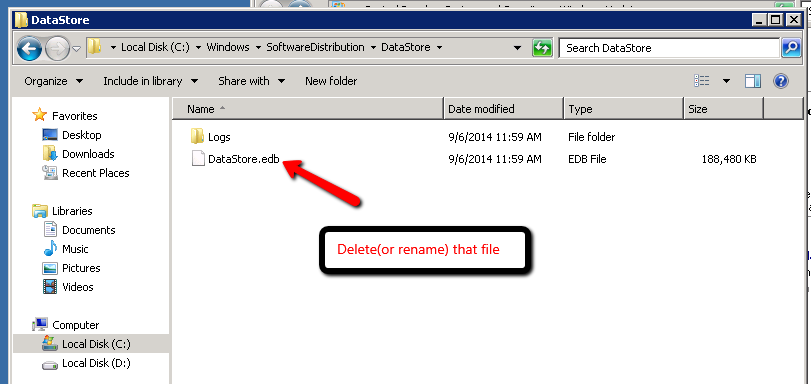
Remove or rename C:\Windows\SoftwareDistribution\DataStore\Datastore.edb
Then updates should work!

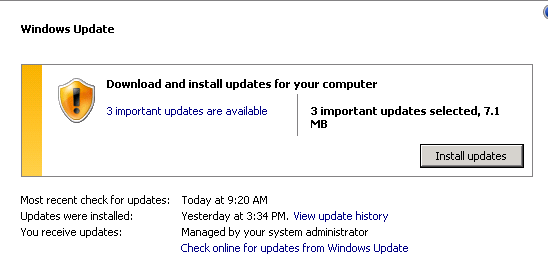
Then run wuapp and update. Updates should now work.